
FAQ: How to Find Your Purchased Courses
If you’re having trouble finding your purchased courses on http://www.sketchloose.co.uk, follow these steps to troubleshoot.
Please make sure you read careful – there are very clear instructions here, with screenshots and images at each step. If you have still have trouble send me a screenshot of where you get stuck .
Video guide to finding your courses
1. Make Sure You’re Logged In Correctly
- Click the Log In button in the top right-hand corner of the website.
- On a phone or tablet, access the login via the drop-down menu.
- Use the email address you signed up with.
- You can also log in by going to this link: https://courses.sketchloose.co.uk/account/sessions/new
- You can also use the button on the top right of the website that says ‘course login’ or ‘student login’

2. Check Your Email for Course Links
- When you signed up, you should have received a confirmation email with direct links to your courses.
- Check your inbox and spam folder in case it was filtered.
- If you didn’t receive an email, you may have entered the wrong email address when signing up.
3. Check Your Dashboard
- After logging in, go to your Dashboard. You can find that on this link: https://courses.sketchloose.co.uk/account/sessions/new
- On a desktop or laptop, you will have the following screen as your dashboard:
- On the left, click ‘products’ and this will bring up all of your purchased and free courses
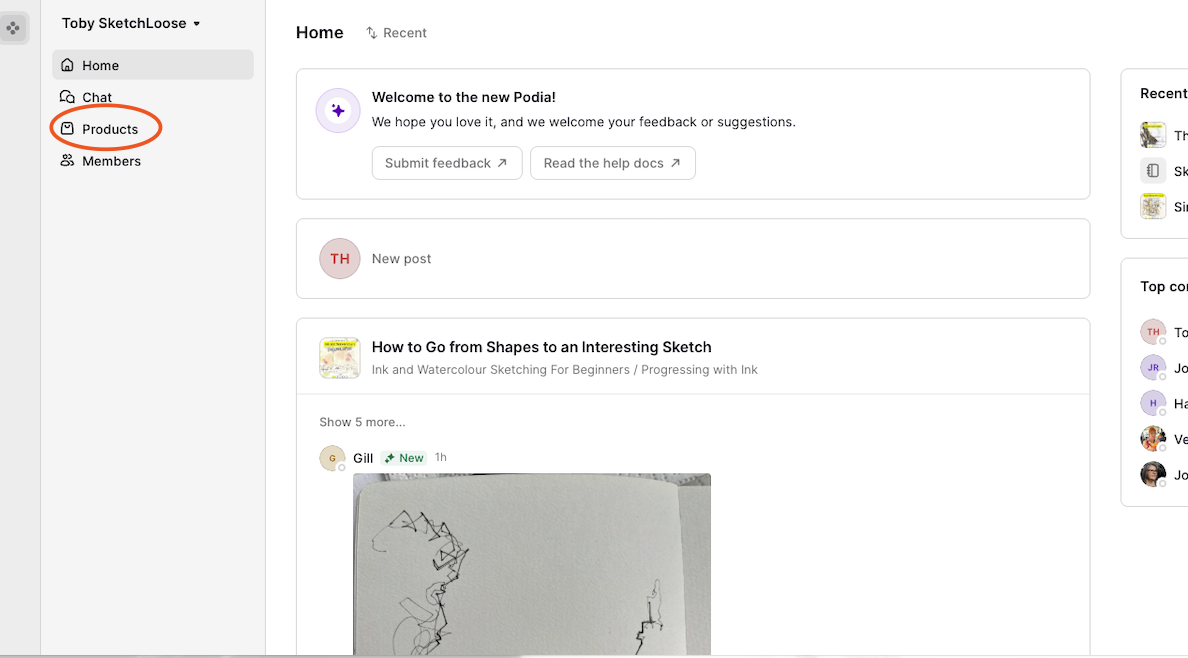
On a mobile/tablet or similar there is one extra step:
- When you go to your dashboard – (you can find that on this link: https://courses.sketchloose.co.uk/account/sessions/new ) – you will have a slightly different screen, but in the top left corner will be the following:
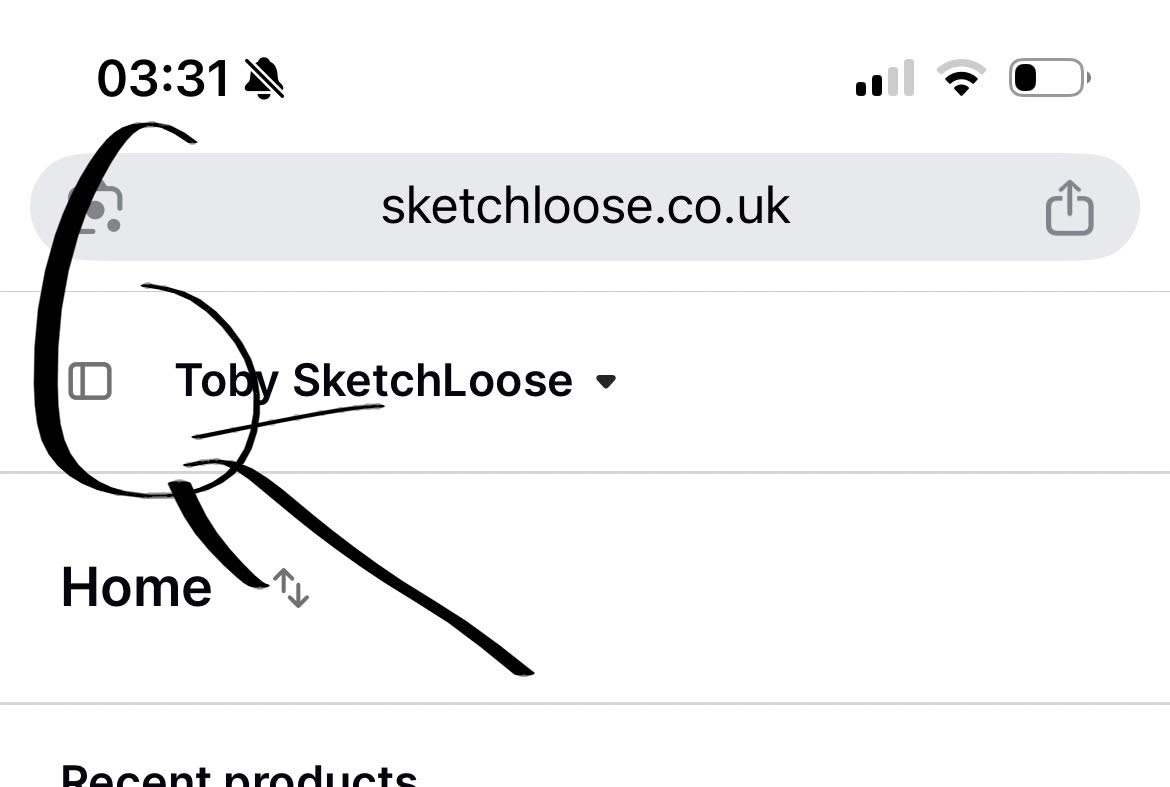
- Please click on the little file icon on the left of the screen as circled above
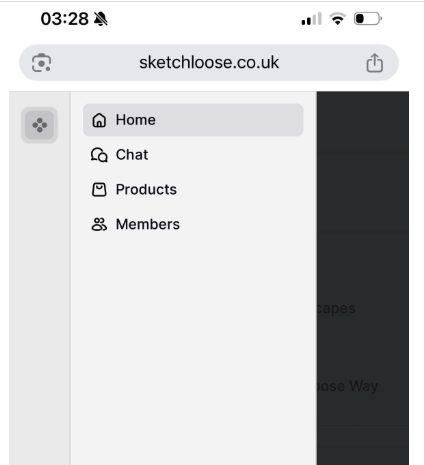
- That will bring up the side bar again, where you can click products and proceed to find all your courses listed
4. You Might Have Two Accounts
- If you have multiple email addresses, you might have signed up with the wrong one.
- Try logging out and logging back in with a different email.
5. Still Stuck? Send a Screenshot
If you’ve tried everything and still can’t access your courses:
- Take a screenshot of where you’re getting stuck.
- Take a screenshot of your dashboard after logging in.
- Email both screenshots to toby.h.email@gmail.com, and I’ll help you sort it out.
Looking forward to getting you sketching!